
What does it do?
 Dropbox is a super-simple solution for those of us with multiple computers, and a lot of files that we want to keep in sync. Dropbox creates a folder on each of your computers called "My Dropbox"-- anything you drop into your Dropbox on one computer shows up in the Dropbox folder on all your other computers.
The free version of Dropbox affords you a healthy 2 gigs of cloud-based, instantly synchronizing storage space.
Why do I care?
 |
| Access to Dropbox is quick and easy |
While internet-based storage solutions have been around just about as long as dialup internet (see also Apple's iDisk, now a part of the MobileMe subscription service,) Dropbox really excels in its ease of use, blending seamlessly into your desktop, just like any other folder.
On the Mac side, your Dropbox is always just a click away, showing as an icon on the right side of the menu bar [right]-- in Windows, it's in the system tray.
How can I use it?
There are a slew of uses for a service like Dropbox, some more obvious than others-- Keep important files in sync between multiple computers
This is probably the most obvious use of Dropbox. For example, you may have a laptop, a desktop, a computer at work, and a smartphone. You'd probably like to be able to access the same files on all of them without fooling around with e-mailing documents to yourself, copying to a USB drive, lugging around an external hard drive, or trying to access a network drive. If it's in your dropbox, it's ready to use on any of your computers.
- Backup in case of a laptop disaster
For those of you unfamiliar with the first 3 rules of computing, they are (in order): Backup, backup, and backup.
If you've ever had a laptop stolen, lost, dropped into a body of water, [okay, maybe just a run-of-the-mill hard drive crash,] then you know what I'm talking about. Laptop drives are significantly more susceptible to failure since they're constantly being jostled around while in use. If your Laptop takes a dive on you, your files on Dropbox are safe and sound, out on the cloud.
- Simplify multiple machine backups
A great trick is to have your periodic/automatic backup solution back up your Dropbox. (See also Carbon Copy, FBackup, SuperDuper, LaCie SilverKeeper, whatever!) What exactly does this do for me, you may ask? This means you can just pull your important files from several different computers into your Dropbox, and know that they will be automatically archived or backed up by your periodic backup program. Slick!
- Simple team collaboration
In lieu of a shared drive solution, Dropbox can make a great sharing solution for a small team working together on a project where everyone needs to access and modify the same documents. If someone makes an unwanted edit, the document versioning functionality allows you to roll back to a previous version with no hassle.
 |
| Dropbox public photo gallery- created from your desktop! |
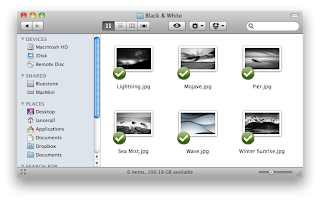
This is pretty awesome-- truly one of my favorite features. Any folder that you create within the Photos folder of your Dropbox automatically becomes a public, web-based photo album that you can share with others with a simple link. [Right] Viewing photos with the Ajax-enabled web interface is quick and easy to navigate. There's even a slideshow option to present the entire album in series.
- Transfer files between computers quickly
For me, this has been one of the most useful application of Dropbox so far. Are you tired of e-mailing files to yourself when you want to view them on another computer? Do you store things in your Gmail account? Not only is this a pain, but it takes up valuable space in your email, and it's a chore to clean out.
I use Dropbox to transfer files between computers, or even between Virtual Machines... Install Dropbox on your host machine, as well as any guest OSes for your Virtual Machines, and presto-- an easy way to get things into (or out of) your VM. Dropbox sync is generally very quick, taking only a few seconds for the sync to begin. Not familiar with virtualization? Check out my post on VMWare Server.
- Sync music, bookmarks, contacts, preferences, whatever
It's a simple concept with exciting implications-- if you use the same applications on multiple computers, use Dropbox to let them share and automatically synchronize data. For example, synchronize your FireFox profile across multiple machines-- when you add, rename or delete a bookmark, it is synchronized instantly. Move your iTunes music library into your Dropbox to synchronize your music across all your computers- (If you're not familiar with how to move your iTunes music folder to somewhere other than the default location, try this LifeHacker article.)
 |
| Document Versioning |
As you make updates to your documents stored on Dropbox, previous versions are stored automatically and are accessible via the Web interface. Make a bunch of ill-advised edits to your term paper at 4am? Log on at Dropbox.com and pop back to yesterday's version.
- Mobile Interface
Dropbox is also available for iPhone, iPad, Android, and BlackBerry.
- Mobile Interface
Dropbox is also available for iPhone, iPad, Android, and BlackBerry.
More Space? Refer your friends- or try the paid version.
Though the free version comes with an impressive 2gb of storage, if you plan on using Dropbox heavily, you can earn an extra 250mb of storage space for every person that you refer that signs up for Dropbox (up to 8gb!). If you found this article interesting and would like to try Dropbox, I'll refer you! Use this link to sign up:
Sign up for Dropbox for free
Need more space than that? (Or don't have any friends?) You can opt for 50gb of space for $99 a year, or 100gb of space for $199 a year. Monthly rates are also available, though the annual plan gets you a bit of a price break.
I've been running the free version for a few months now, and surprisingly haven't used up 2 gigs yet, thoroughly enjoying Dropbox!
Though the free version comes with an impressive 2gb of storage, if you plan on using Dropbox heavily, you can earn an extra 250mb of storage space for every person that you refer that signs up for Dropbox (up to 8gb!). If you found this article interesting and would like to try Dropbox, I'll refer you! Use this link to sign up:
Sign up for Dropbox for free
Need more space than that? (Or don't have any friends?) You can opt for 50gb of space for $99 a year, or 100gb of space for $199 a year. Monthly rates are also available, though the annual plan gets you a bit of a price break.
I've been running the free version for a few months now, and surprisingly haven't used up 2 gigs yet, thoroughly enjoying Dropbox!
 |
| "The Cleverest Ways to Use Dropbox That You're Not Using" |

